# Printing After Changing Your MSU Password
## Windows
If you recently changed your MSU password and can no longer print, Windows may still be using your old password when connecting to Math department printers.
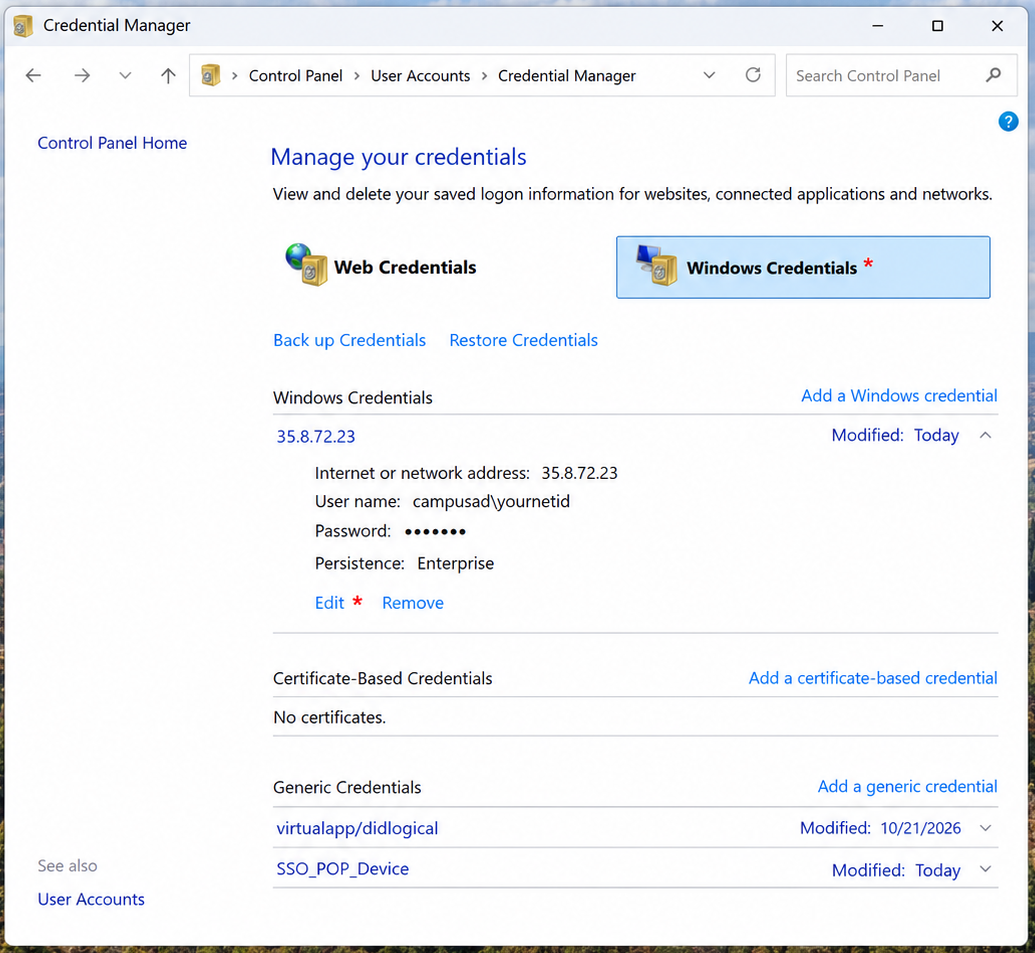
1. Open the Start Menu and search for Credential Manager.
2. Select Windows Credentials.
3. Locate the entry beginning with 35.8.72.23.
4. Click the entry to expand it.
5. Click Edit.
6. Enter your current MSU password and click Save.
7. Try printing again.
8. If you continue to receive an error when printing, restart your computer and try again.
Need additional help? Contact Math IT at Math.ITHelp@msu.edu.
## Mac
1. Open Finder.
2. From the menu bar, select Go → Connect to Server...
3. Enter the following server address and click Connect:
smb://35.8.72.23
4. If prompted with"You are attempting to connect to the server '35.8.72.23'", click Connect to continue.

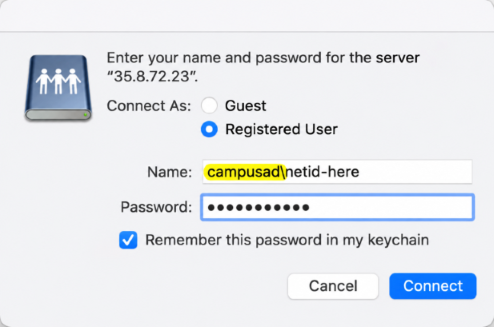
5. Enter your credentials. In the Name field, enter campusad\yournetid and in the Password field enter your current MSU password. Check Remember this password in my keychain.
6. Select printer-drivers and click OK.

7. Try printing again, restart your Mac if necessary.
Need additional help? Contact Math IT at Math.ITHelp@msu.edu.